Jul 04, 2026
•
5 min read


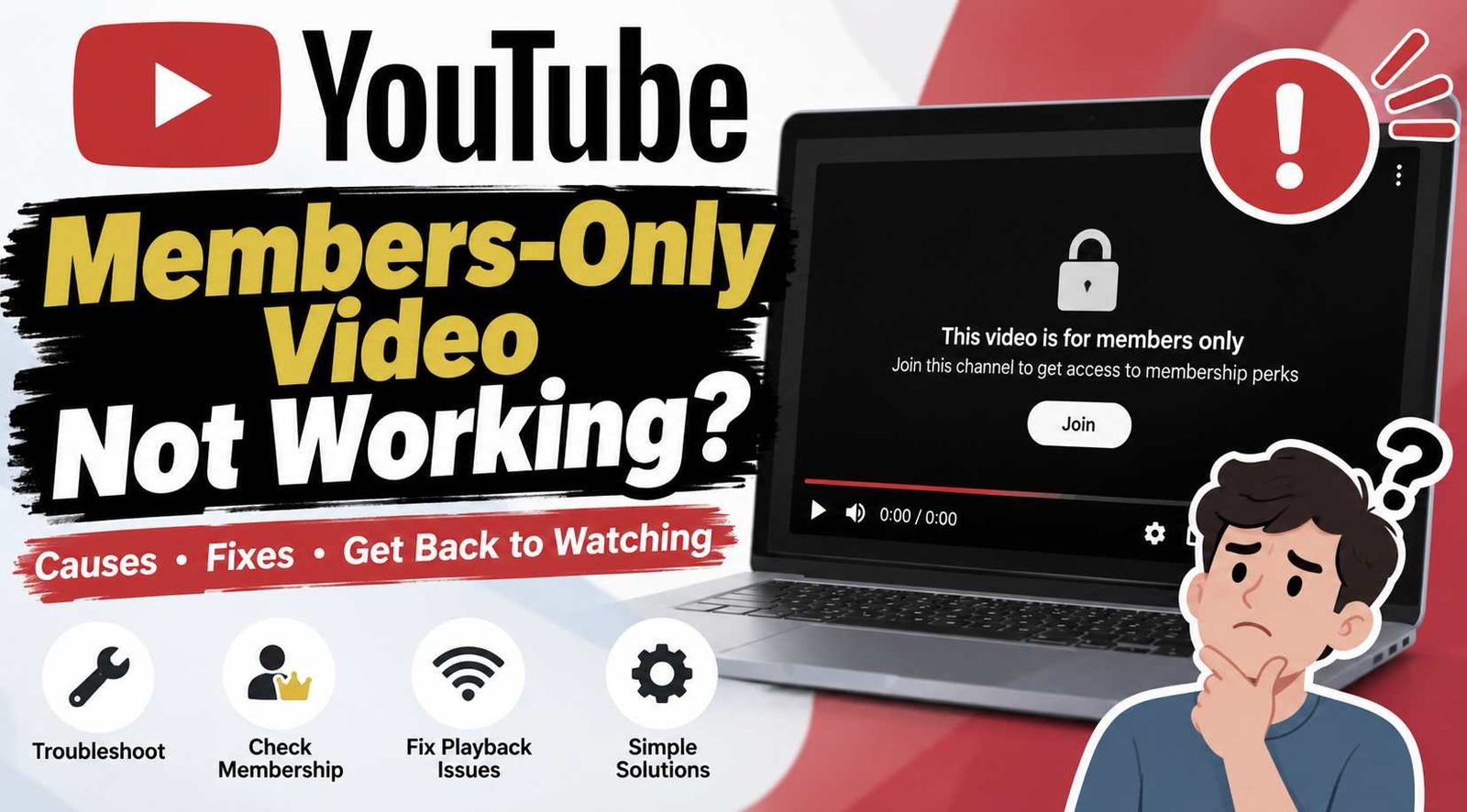
If a YouTube members-only video is not working even though you believe you should have access, do not start by clearing your cache or reinstalling the YouTube app. First identify what is actually failing.
A members-only video can stay locked because YouTube is not recognizing the channel membership, because the video requires a different membership level, or because the creator's membership program is currently unavailable. If YouTube already recognizes your access but the video opens and will not play, the problem is more likely to belong to normal YouTube playback troubleshooting.
That distinction matters because browser fixes cannot give an account access to a membership level it does not have, while changing your membership level will not fix a broken video player.
If a YouTube members-only video is not working, start here:
YouTube allows creators with multiple membership levels to choose which levels can watch individual members-only videos, so being a paying member does not necessarily mean every members-only upload is included at your current level.
The fastest way to troubleshoot the problem is to look at what YouTube is actually doing. “Not working” can describe several different situations, and they should not all lead to the same fix.
If the video still asks you to join the channel, start with your membership status and account. If YouTube recognizes you as a member but one video remains inaccessible, check the membership level assigned to that content. If other members-only videos from the same creator work normally, investigate the individual video before assuming your entire membership is broken.
A different situation occurs when the members-only page opens correctly but the player shows an error, keeps buffering, or fails to start. At that point, the problem may have moved away from membership access and into ordinary YouTube playback.
This simple distinction prevents a common troubleshooting mistake: changing browser settings before confirming that the account is actually entitled to watch the video.
Start by confirming that YouTube recognizes your membership for the correct creator.
On desktop, YouTube lets you manage channel memberships through its paid memberships area. On mobile, memberships can also be reviewed through the account's Purchases and memberships section. You can also open the creator's channel and use See perks when that option is available.
Check the following:
This step is especially important if you regularly switch between Google accounts or YouTube profiles. A payment or membership attached to one account does not establish access while you are watching from another account.
It is also useful to distinguish a channel membership from YouTube Premium. YouTube states that channel memberships are separate from YouTube Premium and YouTube Music Premium. Having Premium therefore does not automatically unlock a creator's members-only videos.
Cancelling does not normally remove your creator perks immediately. YouTube says that after cancelling a channel membership, you keep access to creator perks until the end of the current billing cycle.
So if you cancelled yesterday but your billing period has not ended, cancellation alone may not explain why a video suddenly stopped working.
If the membership no longer appears active when it should, deal with that account or membership issue before spending time on browser troubleshooting.
One of the most important things to understand is that being a channel member and having access to a specific members-only video are not always the same thing.
YouTube allows creators to create multiple membership levels with different perks. When a creator uploads a members-only video, they can select which membership levels are allowed to watch it. YouTube's own documentation says that anyone may find a members-only video, but only members at the appropriate levels can watch it.
This can create a confusing situation. You may see your membership badge, have access to members-only posts, and successfully watch some exclusive videos while another video remains unavailable.
That does not automatically mean YouTube is broken.
Open the creator's channel and select See perks to review the available membership levels and what each level includes. YouTube also states that benefits stack as membership levels increase, so higher levels receive the perks included in lower levels as well.
Consider a simple example. A creator has a basic membership and a higher premium membership. Most exclusive videos are available to both levels, but one upload is published only for the higher level. Someone on the basic membership is still a legitimate paying member, but that particular video is not part of their current access.
That example is illustrative, but the underlying ability to limit a video to selected membership levels is documented by YouTube.
If you determine that a video genuinely requires a higher membership level and decide to upgrade, YouTube says access to the upgraded level begins immediately after the upgrade is purchased.
Do not upgrade simply because a video will not play, though. First establish that the membership level is actually the issue. A higher payment will not solve a browser, app, or video-player problem.
If other members-only videos from the same creator work normally but one specific video does not, that is useful diagnostic information.
It does not prove the cause, but it tells you something important: YouTube is recognizing at least some membership access for that channel.
Use this quick comparison:
Because YouTube can assign individual members-only videos to selected levels, a one-video failure deserves a video-specific check before you reset your entire browser or app.
At the same time, avoid treating this test as definitive proof. One working members-only video does not tell you exactly why another one fails. It simply helps narrow the troubleshooting path.
If every members-only video from that creator suddenly stops working, the membership itself or the creator's membership program becomes more important to investigate.
Sometimes the problem is not on the viewer's device at all.
YouTube has a “paused mode” for channel memberships. When a creator's membership program enters paused mode, YouTube says members lose access to membership perks, monthly payments pause, and the Join button disappears from the channel.
That means changing browsers, clearing cookies, or reinstalling YouTube will not restore a perk that the channel is temporarily unable to provide.
YouTube also documents a more permanent situation. If a channel terminates its memberships program or loses access to the membership feature, recurring memberships and access to membership perks can end.
For the viewer, the important distinction is simple:
Your personal cancellation and the creator's membership program being paused or terminated are different situations.
If you cancelled your own membership, YouTube normally keeps your perks available until your billing cycle ends. If the channel's membership program itself is paused, the availability of those perks is controlled at the channel level.
If all membership perks have disappeared at once, check the creator's channel and recent posts before assuming your phone or computer caused the problem.
Once you have confirmed that the membership exists, your level appears appropriate, and there is no obvious channel-membership issue, the problem may simply be that YouTube is failing to play the video.
This is where normal player troubleshooting becomes useful.
YouTube's current troubleshooting guidance covers connection problems, sign-in state, outdated apps or browsers, cache and cookies, extensions including ad blockers, device software, and device restarts.
Work through the problem in this order.
Open a regular public video.
If public videos are also failing, the problem is probably wider than channel membership. Your connection, app, browser, device, or YouTube playback environment deserves attention.
If ordinary videos work, continue narrowing the test.
Use another members-only upload from the same creator if one is available.
If all of them fail even though your membership appears active, return to the membership and channel-state checks. If only one fails, continue investigating that video's access and playback conditions.
If you are using the YouTube app, try the browser. If you are already in a desktop browser, an Incognito or Private Browsing window can help determine whether your normal browser configuration is involved.
YouTube specifically recommends testing an Incognito window with extensions disabled when investigating extension-related playback problems.
An outdated app or browser can create playback problems unrelated to membership.
YouTube recommends using the latest available version of its app and keeping the browser and device software updated.
Browser extensions, including ad blockers, can affect video playback according to YouTube's troubleshooting documentation. Try the video with extensions disabled or in a clean private session before making larger changes to the browser.
Clearing cache and cookies is a legitimate YouTube troubleshooting step, but it should not be the first response to every members-only problem.
It can help when the browser session itself is malfunctioning. It cannot change the membership level assigned to your account or make a creator's paused membership program active again.
If the error has turned into a broader content or playback problem, you can continue with our guide to diagnosing the “This content isn't available” YouTube error, which separates content, account, browser/device, and connection problems instead of applying the same fix to every error. Diagnose the “This content isn’t available” YouTube error
Troubleshooting has a limit. Once you have confirmed your membership, checked your level, compared other members-only videos, and ruled out obvious player problems, the remaining issue may require the creator or YouTube to resolve it.
The creator is the appropriate person to clarify which membership level is supposed to include a particular members-only upload.
This is especially useful when other membership perks work normally but one video remains inaccessible and the required level is not obvious.
A concise question is usually enough: mention your current membership level and the specific video that is unavailable.
If YouTube shows a paid channel membership but the associated membership features or perks do not function correctly, YouTube's refund/support documentation directs users to contact support for help.
That does not mean a refund is guaranteed. YouTube has specific refund rules, and purchases made through Apple may need to be handled through Apple support instead.
Before contacting support, it helps to have the following information ready:
That information makes it easier to explain whether you are dealing with a membership problem, one-video problem, or general playback failure.
First confirm that the correct channel membership is active on the YouTube account you are currently using. Then check whether the specific video requires a different membership level. YouTube allows creators to limit individual members-only videos to selected membership levels.
Yes. If a creator has multiple membership levels, they can choose which levels are allowed to watch a particular members-only video.
One documented possibility is that the unavailable video is assigned to a different membership level. However, that is not the only possible explanation. Check the video's access conditions first, then investigate normal playback if your membership level appears correct.
No. YouTube treats creator channel memberships separately from YouTube Premium and YouTube Music Premium. A Premium subscription does not automatically provide access to a creator's paid channel membership content.
Normally, no. YouTube says you keep access to creator perks until the end of the current billing cycle after cancelling your recurring channel membership.
YouTube states that access to the upgraded membership level begins immediately after the upgrade is purchased.
Usually not. Cache and cookies are part of YouTube's official playback troubleshooting guidance, but they should be used after checking whether the problem is actually related to membership access or video eligibility.
Author
Youtube Toolkit Team is a Digital Creator & YouTube Growth Specialist from the Netherlands
As Youtube Toolkit’s lead content writer, he transforms complex technical topics into engaging and helpful guides. His goal is to empower creators, coders, and marketers through clear and actionable content.
With 20+ years of experience in the digital ecosystem, Lucas specializes in bridging the gap between sophisticated technical architecture and practical end-user application. Whether it's deep-diving into YouTube SEO or exploring new SaaS integrations, his writing is designed to deliver immediate value.
Use our free tools to analyze, optimize, and maximize your YouTube channel's potential