
Oct 03, 2026
•
15 min read

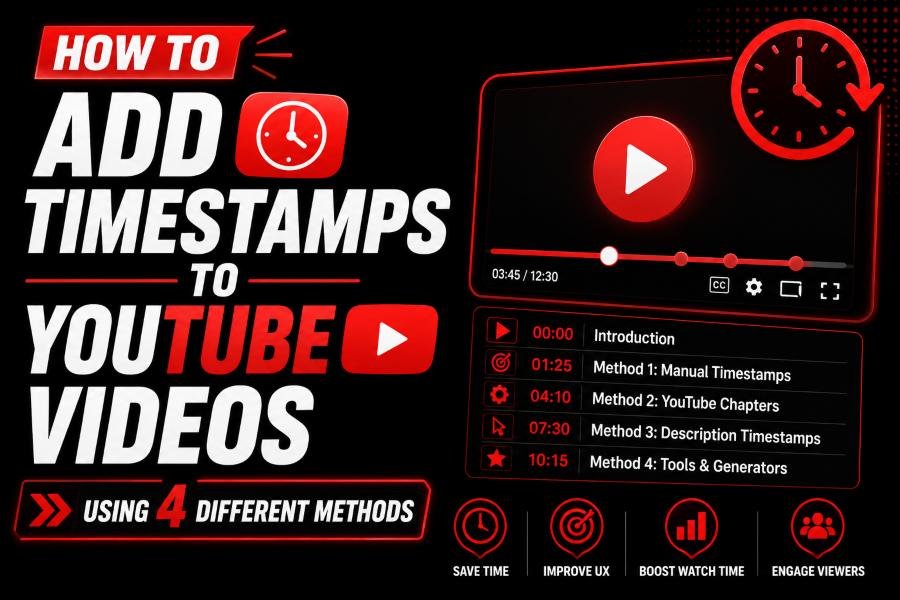
To add timestamps to a YouTube video, open the video in YouTube Studio and place a list of times and chapter titles in the description. Start the first timestamp at 00:00, include at least three timestamps in chronological order, and make sure every chapter is at least 10 seconds long.
Use this format:
00:00 Introduction
01:25 What YouTube Timestamps Are
03:40 How to Add YouTube Chapters
06:15 Fix Timestamps That Are Not Working
08:30 Final Tips
Save the description and open the published video to confirm that each timestamp is clickable and the chapters appear correctly on the progress bar.
This guide explains how to add timestamps to your own YouTube videos, share videos from an exact time, add timestamps to comments, create timed embeds, and fix chapters that are not showing.
A YouTube timestamp points viewers to a specific moment in a video.
For example, a timestamp written as 05:30 directs viewers to the point five minutes and thirty seconds after the video begins.
Timestamps are particularly useful for:
Instead of watching an entire video to find one answer, viewers can select the relevant timestamp and move directly to that section.
A timestamp usually points to one specific moment. A YouTube chapter divides an entire video into multiple labeled sections.
For example, this is a single timestamp:
05:30 Main tutorial begins
This is a complete chapter list:
00:00 Introduction
01:40 Required Tools
03:25 Step-by-Step Tutorial
07:10 Common Problems
10:30 Final Results
When the chapter list follows YouTube’s requirements, the sections may appear directly on the video progress bar.
Viewers can then:
Follow these steps to add timestamps to a video you have uploaded.
Sign in to your YouTube account and open YouTube Studio.
You can access YouTube Studio from your profile menu or by visiting the Studio dashboard directly.
Choose Content from the left-side menu.
Find the video you want to update and select its title or thumbnail.
Scroll to the video description section.
You can add timestamps below your main video description, call to action, or introductory text.
Add every timestamp on a separate line.
Place the time first, followed by a short title describing the section.
Example:
00:00 Introduction
01:15 Why YouTube Timestamps Matter
03:20 Add Timestamps in YouTube Studio
06:45 Create a Timestamp Link
09:10 Fix YouTube Chapters
Select Save after adding the timestamps.
Open the public video page and test every chapter to make sure it begins at the correct moment.
YouTube chapters will not activate unless the timestamp list follows the required structure.
Your first chapter must begin at the start of the video.
Correct:
00:00 Introduction
Incorrect:
00:15 Introduction
Even when the actual introduction begins later, the first chapter should still start at 00:00.
You can name the opening chapter:
YouTube requires at least three timestamps for a chapter list.
This will not be enough:
00:00 Introduction
04:30 Main Topic
Use at least three sections:
00:00 Introduction
04:30 Main Topic
08:15 Conclusion
Every timestamp must appear in ascending order.
Incorrect:
00:00 Introduction
06:30 Main Tutorial
03:10 Required Tools
Correct:
00:00 Introduction
03:10 Required Tools
06:30 Main Tutorial
Each chapter must last for at least 10 seconds.
Incorrect:
00:00 Introduction
00:06 Main Topic
00:15 Example
The first section lasts only six seconds, so the chapter structure may not work.
A better version would be:
00:00 Introduction
00:15 Main Topic
00:40 Example
Do not publish a list containing only numbers.
Weak format:
00:00
02:30
05:45
Better format:
00:00 Introduction
02:30 Account Setup
05:45 First Tutorial
Chapter titles help viewers understand what each section contains.
Use the timestamp format that matches the length of your video.
Use the MM:SS format.
Example:
00:00 Introduction
03:25 Main Topic
18:40 Final Tips
Use the HH:MM:SS format.
Example:
00:00:00 Introduction
00:28:15 First Discussion
01:05:40 Second Discussion
01:42:30 Final Questions
You can also continue using minutes beyond 59, but the hour-based format is usually easier to read for long videos.
Keep the format consistent throughout your chapter list.
Avoid mixing formats such as:
00:00 Introduction
4:15 Main Topic
01:02:30 Final Section
Use one clean format from beginning to end.
You can place timestamps near the beginning or end of the video description.
A practical structure is:
Short video description

Important call to action

Video Chapters:
00:00 Introduction
02:10 Main Topic
06:40 Example
10:15 Conclusion

Additional information
Placing the chapters near the top makes them easier for viewers to find.
However, do not remove useful introductory text simply to move the chapter list higher. Keep the description readable and organized.
A timestamp tells viewers when a section begins. The chapter title tells them why they should watch it.
Avoid vague titles such as:
00:00 Start
02:30 Part One
05:45 Next Part
09:15 More Information
Use descriptive titles instead:
00:00 Introduction
02:30 Create a YouTube Channel
05:45 Upload Your First Video
09:15 Optimize the Video Description
Good chapter titles should be:
Do not add keywords that do not accurately describe the section.
For example, do not name a chapter “YouTube SEO Strategy” when the section only explains how to change a thumbnail.
You can create timestamps manually while reviewing the completed video.
Play the video from the beginning.
Each time the main topic changes, pause the video and write down the displayed time.
Example notes:
0:00 Introduction
1:18 Required software
3:42 Account setup
7:06 First example
10:25 Troubleshooting
After reviewing the full video, clean up the titles and add the list to the description.
Open the YouTube transcript and locate where each main topic begins.
The transcript can help you find exact phrases and section changes without repeatedly moving through the timeline.
A timestamp or chapter-generation tool can make the process faster for long videos.
You can also use the YouTube Video Viewer to open and review a YouTube video while identifying important sections and checking exact moments.
After generating timestamps with any tool, manually verify them before publishing.
YouTube can attempt to create chapters automatically.
To enable automatic chapters:
Automatic chapters can be useful when you do not have time to create a manual list.
However, automatic chapter titles or section boundaries may not always match your preferred structure.
Review the published video and decide whether the automatically created chapters are accurate enough.
Manual chapters give you more control over:
Automatic chapters are faster, but YouTube decides where each section begins and how it is labeled.
When you add valid manual chapters, they replace the automatic chapters for that video.
For important tutorials, interviews, product videos, and educational content, manual chapters are usually more reliable because you can verify each section yourself.
You can share a video from an exact moment without editing its description.
When someone opens the link, the video should begin at the selected moment.
Always test the link before sending it.
On supported mobile versions of YouTube:
The exact wording or location of the time control may vary depending on your device, operating system, and YouTube app version.
When the option is not available, copy the normal video URL and add a time parameter manually.
A YouTube timestamp link includes a time value at the end of the URL.
For a shortened YouTube URL, the link may look like this:
https://youtu.be/VIDEO_ID?t=150
The number represents seconds.
In this example:
150 seconds = 2 minutes and 30 seconds
A standard YouTube watch URL may look like:
https://www.youtube.com/watch?v=VIDEO_ID&t=150s
Multiply the number of minutes by 60 and add the remaining seconds.
Example for 4 minutes and 25 seconds:
4 × 60 = 240
240 + 25 = 265 seconds
The timestamp value would be:
t=265
Example link:
https://youtu.be/VIDEO_ID?t=265
Use a question mark when adding the first parameter:
https://youtu.be/VIDEO_ID?t=150
Use an ampersand when the URL already contains a parameter:
https://www.youtube.com/watch?v=VIDEO_ID&t=150s
Do not add multiple question marks to the same URL.
Incorrect:
https://www.youtube.com/watch?v=VIDEO_ID?t=150
Correct:
https://www.youtube.com/watch?v=VIDEO_ID&t=150
You can reference an important part of a video by adding the time to your comment.
Example:
05:30 This is where the main tutorial begins.
For longer videos, use the hour format when needed:
01:15:20 The answer to the main question starts here.
After publishing the comment, select the timestamp to make sure it opens the correct part of the video.
Use comment timestamps for:
Avoid posting too many timestamps in unrelated comments, as that can make the discussion difficult to read.
When embedding a YouTube video on a website, use the start parameter.
The value must be written in seconds.
Example:
<iframe
  width="560"
  height="315"
  src="https://www.youtube.com/embed/VIDEO_ID?start=150"
  title="YouTube video player"
  allowfullscreen>
</iframe>
This embed begins at 150 seconds, or two minutes and thirty seconds.
Use an ampersand before start.
Example:
<iframe
  src="https://www.youtube.com/embed/VIDEO_ID?rel=0&start=150"
  title="YouTube video player"
  allowfullscreen>
</iframe>
Always preview the page after adding the embed.
Some website builders, content management systems, or security plugins may remove unsupported URL parameters.
Timestamps can appear in a description without creating visible chapters.
Check each of the following problems.
Incorrect:
00:20 Introduction
Correct:
00:00 Introduction
The first section must start at the beginning of the video.
Two timestamps will not create a complete chapter structure.
Add at least three:
00:00 Introduction
02:30 Main Tutorial
06:45 Final Tips
Incorrect:
00:00 Introduction
07:30 Final Tips
04:15 Main Tutorial
Correct:
00:00 Introduction
04:15 Main Tutorial
07:30 Final Tips
Every chapter needs to last at least 10 seconds.
Incorrect:
00:00 Introduction
00:05 Main Topic
00:12 Example
The first chapter lasts only five seconds.
Check for formatting mistakes such as:
0;30 Main Topic
Use a colon:
00:30 Main Topic
Also check for accidental letters, missing numbers, or extra punctuation.
After adding or changing timestamps, select Save in YouTube Studio.
Refresh the public video page after saving.
Some channels may not have access to chapters or other advanced features.
Open your YouTube Studio settings and review your feature eligibility.
Complete any required channel verification steps shown in your account.
Active strikes or content restrictions may affect access to some YouTube features.
Check the channel dashboard and review any warnings or restrictions.
When a valid manual timestamp list is added, it replaces YouTube’s automatically generated chapters.
Remove the manual list when you want YouTube to attempt automatic chapter generation instead.
Trimming the beginning, removing a middle section, or changing the uploaded video can make old timestamps inaccurate.
Review the full video again after editing and update every affected time.
Changes may not always appear instantly.
Refresh the video page and check it from another browser or device.
You can also open the video in a private browsing window to avoid cached information.
A single timecode can sometimes work as a clickable link even when the complete chapter structure is invalid.
For chapters to appear, verify that:
00:00Clickable timestamps and progress-bar chapters are related, but they are not exactly the same feature.
Yes. You can add or edit timestamps at any time.
Open the published video in YouTube Studio, update the description, and save the changes.
This is useful when:
After making changes, test every timestamp again.
Yes. You can change:
Be careful when moving a timestamp earlier or later.
Changing one chapter may affect the duration of the chapter before it.
For example:
00:00 Introduction
02:30 Main Topic
05:00 Example
If you move the Main Topic chapter from 02:30 to 04:55, the Main Topic chapter would last only five seconds before the next chapter at 05:00.
Review the full chapter sequence after every change.
Yes. Delete the timestamp list from the video description and save the changes.
When automatic chapters are enabled, YouTube may generate its own sections after you remove the manual list.
Disable the automatic chapter option when you do not want any chapters to appear.
You can mention a time inside a Short, but traditional chapters are usually not useful because Shorts are brief and use a different viewing experience.
External URLs placed in Shorts comments and descriptions may not be clickable.
For Shorts, consider using:
Use standard timestamps and chapters mainly for long-form videos.
You can add timestamps to an archived live stream after the broadcast ends.
Wait until YouTube finishes processing the recording. Then watch the final version and record the start time of each important section.
Archived live streams may contain:
Do not rely entirely on timestamps written during the original broadcast. Check them against the final processed video.
Timestamps can help search engines understand the structure of a video.
Google may use timestamps and labels from a YouTube description to identify important moments in the video.
These sections may appear as Key Moments in search results when Google considers the video eligible.
However, timestamps do not guarantee:
Their primary purpose is to improve video organization and navigation.
Clear chapter titles may also help YouTube and viewers understand the subject of each section.
Timestamps can make long videos easier to use.
They allow viewers to:
However, do not create too many unnecessary chapters.
A new chapter every few seconds can make the progress bar cluttered and difficult to scan.
Create a chapter when the topic, speaker, step, or purpose of the video changes meaningfully.
YouTube requires at least three timestamps, but there is no single ideal number for every video.
The right number depends on:
A 10-minute tutorial may need four or five chapters.
A two-hour podcast may need 10 or more chapters.
Focus on meaningful sections rather than trying to reach a specific number.
Chapter detail should match the way viewers use the video.
For a tutorial, create chapters for major steps:
00:00 Introduction
01:20 Install the Software
04:45 Create an Account
07:30 Configure the Settings
12:15 Export the Final File
For an interview, create chapters for major questions:
00:00 Introduction
02:15 Career Background
10:40 First Business Failure
22:30 Growth Strategy
38:20 Advice for Beginners
For a product review, create chapters for important evaluation areas:
00:00 Introduction
01:30 Design and Build Quality
04:45 Main Features
08:10 Performance Test
12:30 Pros and Cons
15:20 Final Verdict
Avoid creating a separate chapter for every sentence or small transition.
Avoid these frequent problems:
Always start the first chapter at 00:00.
You need at least three timestamps.
Avoid titles such as Part One, Part Two, or Next.
Each section must last at least 10 seconds.
Open every timestamp after publishing.
Do not estimate section positions without reviewing the video.
Create sections for meaningful topic changes.
Update timestamps after trimming or replacing sections.
Use either MM:SS or HH:MM:SS consistently.
A link to one moment does not create a complete chapter structure.
Use this step-by-step workflow for accurate results.
Do not create final timestamps from an unfinished edit.
Write down each important section and its starting time.
Use clear titles that accurately describe the section.
Confirm that the list starts at 00:00, includes at least three timestamps, and contains chapters lasting at least 10 seconds.
Place every timestamp and title on a separate line.
Select Save in YouTube Studio.
Check the published video on desktop and mobile.
Update the timestamp list whenever the video changes.
Before publishing, confirm that:
00:00Add the time and chapter title to the video description on separate lines. Begin the first timestamp at 00:00, include at least three timestamps, and save the changes.
Yes. The first timestamp must begin at 00:00 for the list to create YouTube chapters.
You need at least three timestamps in chronological order.
Every chapter must last at least 10 seconds.
Yes. Open the old video in YouTube Studio, edit the description, add the timestamp list, and save it.
Yes. A valid manual chapter list overrides YouTube’s automatic chapters for that video.
Common reasons include a missing 00:00 timestamp, fewer than three chapters, incorrect order, chapters shorter than 10 seconds, formatting errors, or channel eligibility restrictions.
You can add a timecode such as 05:30 to reference a specific part of a standard video. Test the published comment to confirm that it opens the correct moment.
Yes. Use the Start at option in the YouTube Share panel or add a time parameter to the video URL.
Google may use timestamp labels from a YouTube description to display important video moments. Appearance in search results is not guaranteed.
Adding timestamps to YouTube videos is simple once you understand the required structure.
Start the first timestamp at 00:00, add at least three clearly titled sections, keep them in chronological order, and make every chapter at least 10 seconds long.
Use description timestamps when you want to organize your own video. Use a timestamp link when you want to share one exact moment. Use comment timestamps for discussions and the start parameter for embedded videos.
Most importantly, test every timestamp after publishing. A properly formatted and verified chapter list makes long videos easier to understand, navigate, and share.
Author
Youtube Toolkit Team is a Digital Creator & YouTube Growth Specialist from the Netherlands
As Youtube Toolkit’s lead content writer, he transforms complex technical topics into engaging and helpful guides. His goal is to empower creators, coders, and marketers through clear and actionable content.
With 20+ years of experience in the digital ecosystem, Lucas specializes in bridging the gap between sophisticated technical architecture and practical end-user application. Whether it's deep-diving into YouTube SEO or exploring new SaaS integrations, his writing is designed to deliver immediate value.
Use our free tools to analyze, optimize, and maximize your YouTube channel's potential