
Sep 17, 2026
•
15 min read

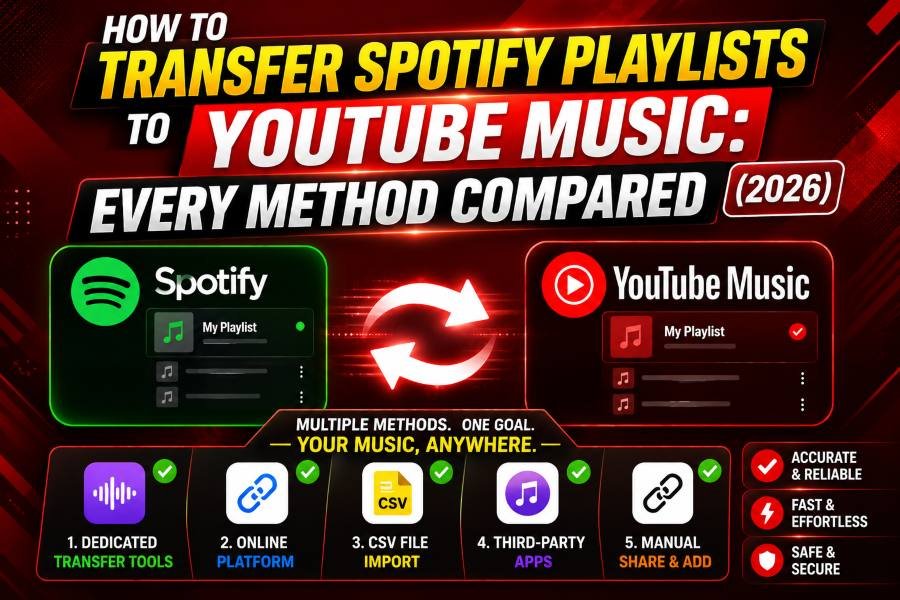
Every transfer tool promises a one-click migration. What they don't mention is the tax you pay on the way over: a handful of tracks that show up as the wrong version, a few that vanish outright, and a playlist order that occasionally scrambles itself. Most guides skip this part because it's bad for business — it's hard to sell a "seamless" migration app while admitting that seamless migrations don't exist.
This guide covers all five practical methods for moving your library from Spotify to YouTube Music, in order of effort and free-tier generosity. It also covers the part everyone else leaves out: how to check whether your transfer actually worked, and what to do about the tracks that didn't make it.
Whichever method you pick, budget time for a manual check afterward. No transfer tool publishes an independent, verified match-success rate, and no controlled study measuring failure rates across these tools appears to exist — so treat any specific percentage you see quoted online (including, previously, in this article) with skepticism. What's well documented instead is why mismatches happen, which is arguably more useful: regional licensing gaps, live-versus-studio mixups, and tracks that simply don't exist in YouTube Music's catalog.
Before you open any transfer tool, it helps to know the ceiling. Every method in this guide operates within the same platform limits, because the limits belong to Spotify and YouTube Music, not to the tools themselves.
What moves over cleanly:
What stays behind, permanently:
With the boundaries set, here's each method, starting with the one most people don't know exists.
Google added a native transfer option directly inside YouTube Music, and it's the method most guides skip — likely because it has no affiliate program attached, so there's less incentive to write about it.
This feature isn't built from scratch — it's TuneMyMusic's infrastructure running under YouTube Music's own interface. That matters because it means non-Premium users are typically bound by the same roughly 500-song ceiling that applies to TuneMyMusic's free tier. Google doesn't advertise this cap anywhere in the UI, so if your playlist is larger, expect the transfer to stall silently or prompt an upgrade rather than warn you upfront. YouTube Music Premium subscribers generally bypass the limit.
Best for: anyone who already has Premium and just wants the path of least resistance.
If you don't have Premium, or you want more control than the built-in flow offers, three commercial tools cover most use cases.
FreeYourMusic's own site currently advertises a free tier covering 600 songs and one playlist, no card required. Download the app for iOS, Android, Mac, Windows, or Linux, then connect Spotify as your source via OAuth and YouTube Music as your destination. Select the playlist you want to move and tap Begin Transfer. FreeYourMusic markets a 1,000-track library as typically finishing in under 10 minutes, though actual speed varies with server load. After the transfer completes, check the Rematch tab — it flags tracks the app wasn't fully confident about, which is usually where wrong versions hide. Matching runs on ISRC codes (a 12-character identifier assigned to each recording), falling back to title/artist/album/duration when a track has no ISRC on file in one platform's database.
This one runs entirely in the browser at tunemymusic.com, which makes it the fastest option if you'd rather not install anything. Free transfers are capped around 500 tracks. Sign in to both services, select what you want to move — playlists, liked songs, albums, or artists — and click Start Transfer. When it's done, download the CSV report; it labels every track that didn't make it as "Missing," which is a clear audit trail. Like FreeYourMusic, matching relies on ISRC codes first, with a title/artist/duration fallback.
Soundiiz's own support documentation confirms the free plan's 200-track cap applies per playlist, not as a lifetime total, but free transfers must be started one playlist at a time — batch selection requires Premium or Creator. Soundiiz supports the widest range of destination platforms of the three, which is useful if you're hedging between services. Create a free account, connect both services, then use the Transfer tool under the Tools section and monitor progress in My Batches. One independent review of the tool notes that the most common complaint from users is confusion around what the free plan actually covers — people transfer their whole library and only discover the 200-track, single-playlist limit after hitting it, without warning. Soundiiz Premium removes the cap and adds Auto-Sync, which mirrors playlist changes between platforms on a schedule.
All three tools rely on ISRC matching to find exact tracks. When both platforms have the same ISRC on file, the match is close to perfect. When it's missing — which happens more often than you'd expect — the tool falls back to matching by title, artist, and duration, and that's the gap live versions, lyric videos, and remasters slip through.
The underlying reason is structural, not a tooling bug. Spotify runs on an audio-first database, where a song is a distinct entity with rigid metadata (artist, album, year) sitting in a relational database built around discographies. YouTube runs on a video-first database — search for a song on YouTube Music and you'll often see five different results: the official audio, a music video, a lyric video, a fan upload, and a live version, all of which "sound like" the track without being the canonical release. A fallback matcher without an ISRC to anchor it has to pick one, and it doesn't always pick the studio version. Users of the open-source spotify_to_ytmusic tool have reported exactly this on the project's GitHub page — tracks matching to versions uploaded by random users instead of the official release.
Best for: users with a handful of playlists who want a polished app experience over command-line tools.
If your library runs into the thousands, every commercial free tier eventually runs out. Open-source tools remove the cap entirely, at the cost of more setup and a bit of technical comfort.
SpotTransfer is a Python tool with a hosted web interface, built on ytmusicapi to talk to YouTube Music. You'll need a Spotify Developer account for a Client ID and Secret — note that Spotify has, as of late 2024, required a Premium subscription for some Web API operations. The credentials are tied to the developer account, not the playlist's source account, so you can generate them from any Premium account, including a friend's.
A note on risk: this method involves pasting your authenticated YouTube Music session headers — effectively your live login session — into a third-party site. Only do this with tools whose source code you can inspect (SpotTransfer's is public on GitHub). If you're not comfortable with that step regardless, use the desktop GUI option below instead.
This tool by developer mahdi-y wraps the same underlying process in a graphical interface, with resume capability if a transfer gets interrupted and adjustable batch sizes. On Windows, install it via PowerShell:
Open PowerShell and run this command:
iwr -useb https://raw.githubusercontent.com/mahdi-y/Spotify2YoutubeMusic/master/S2YM.bat -OutFile S2YM.bat; ./S2YM.bat
If you're cautious about piping a remote script straight into execution, open the downloaded .bat file in a text editor first and read it before running — it's a reasonable habit for any one-line install script, not specific to this tool.
It caches search results to speed up re-runs, produces a detailed JSON report of exactly which tracks succeeded or failed, and automatically resumes if your YouTube Music session headers expire mid-transfer — a common failure point with header-based tools.
The lightest-weight option, best suited to users who just want a script that runs and exits. Install it with pipx by running these two commands:
pipx install spotify_to_ytmusic spotify_to_ytmusic setup
Then run the transfer against any playlist URL:
spotify_to_ytmusic create followed by your Spotify playlist URL
Every track that fails to match gets written to a file called noresults_youtube.txt in your working directory — an explicit, readable failure log rather than a buried in-app tab.
That failure log is exactly why open-source tools tend to win on large libraries. It's not really about being free; it's that they hand you an unambiguous list of what didn't survive, instead of leaving you to guess.
Best for: power users with large libraries who want full visibility into what happened, track by track.
None of the tools above can read your Spotify Liked Songs directly, no matter which method you choose. That's not a limitation of the tools — it's a limitation of Spotify's API, which treats Liked Songs as private library data rather than a playlist. Transfer tools are built around the playlist endpoint, so anything that isn't structured as a playlist is invisible to them.
The workaround is the same regardless of which method you're using:
It's an extra step, and there's no way to skip it — but once the export playlist exists, it behaves exactly like any other playlist for transfer purposes.
Even with ISRC matching doing most of the heavy lifting, some tracks won't survive the trip. The failures cluster around a few predictable causes:
The version-mismatch cause deserves a closer look, since it's the one most likely to slip past a casual check. YouTube Music's search tends to surface whichever upload has the strongest engagement, not necessarily the canonical studio recording — a lyric video with hundreds of millions of views can outrank the original track with a fraction of that view count, and a fallback matcher without an ISRC to anchor it will often follow the popularity signal rather than the correct one.
This is the part missing from nearly every other guide on this topic, and it's arguably more important than the transfer itself. A migration that "completes" isn't the same as one that worked.
Some tracks genuinely don't exist on YouTube Music, and no amount of verification will change that. The goal isn't zero loss — it's knowing exactly what you lost, so nothing disappears without your noticing.
"Authorization failed" when connecting accounts. OAuth tokens expire. Log out of the transfer tool, revoke its access from Spotify's or YouTube's "Connected Apps" settings, and reconnect from scratch.
Transfer stuck at 0% or frozen. Clear your browser cache, disable any active VPN, and try a different browser. For open-source tools, this almost always means your YouTube Music session headers have expired — re-extract them and restart.
Songs missing after transfer, with no explanation. Check whether your playlist exceeds your tool's free-tier limit. If you tried to move 600 songs on a 500-song plan, the transfer likely stopped silently partway through rather than failing loudly — this is one of the most commonly reported complaints about these tools. Split the playlist and run it in batches.
Wrong songs or versions came through. This is a structural limitation of title-based fallback matching, not a bug specific to any one tool. Every method in this guide is exposed to it. The only real fix is the manual post-transfer review covered above.
There's no universally "best" tool here — only the right tool for your library size and how much you value speed, cost, or a clear audit trail. Small libraries with a Premium subscription should just use the built-in import. Casual users with a playlist or two are well served by FreeYourMusic or TuneMyMusic. Anyone with a library in the thousands, or anyone who wants an explicit list of what failed rather than a vague summary, should reach for the open-source tools despite the extra setup.
Whichever path you take, treat the transfer itself as step one of two. Step two — the 20-track spot-check, the failure report, the manual re-follows — is the part that actually determines whether your library survived the move intact. Budget roughly an hour total: ten minutes to run the transfer, thirty to verify it, and the rest to fix what didn't come through clean. Don't cancel Spotify until you've done it.
Author
Youtube Toolkit Team is a Digital Creator & YouTube Growth Specialist from the Netherlands
As Youtube Toolkit’s lead content writer, he transforms complex technical topics into engaging and helpful guides. His goal is to empower creators, coders, and marketers through clear and actionable content.
With 20+ years of experience in the digital ecosystem, Lucas specializes in bridging the gap between sophisticated technical architecture and practical end-user application. Whether it's deep-diving into YouTube SEO or exploring new SaaS integrations, his writing is designed to deliver immediate value.

Use our free tools to analyze, optimize, and maximize your YouTube channel's potential