Sep 13, 2026
•
15 min read


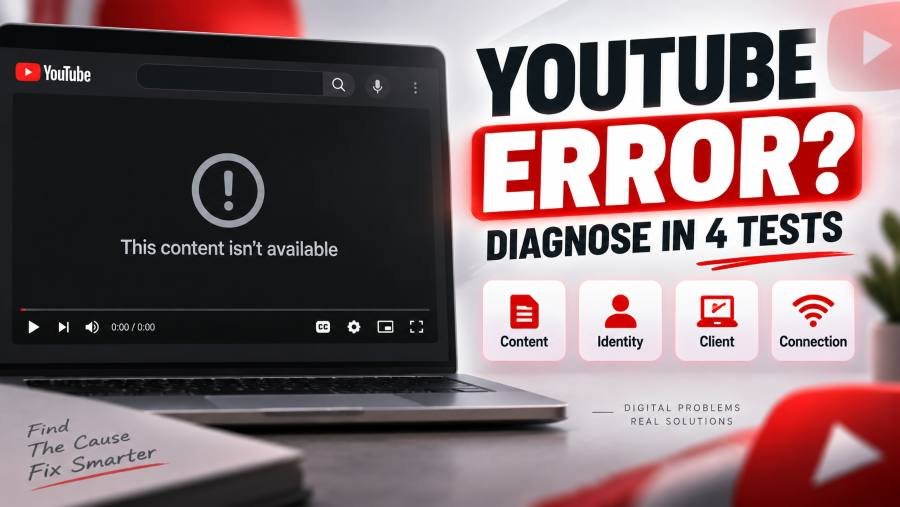
If YouTube shows “This content isn’t available” or “This content isn’t available, try again later,” do not begin by clearing your browser cache or reinstalling the app. First determine whether the failure follows the video, your account, your browser or device, or your internet connection.
The fastest way to do that is the CICC test: Content, Identity, Client, Connection. Test another video, open the failing video while signed out, try it in Incognito or Private Browsing, and then change networks if the problem remains.
The result of those four tests is usually more useful than the error message itself. YouTube’s own troubleshooting guidance recognizes that playback errors can involve the browser, app, account state, extensions including ad blockers, cache and cookies, internet connection, device software, or other playback conditions.
Before changing any settings, compare your problem with the six patterns below. Each pattern points toward a different troubleshooting path, so identifying the right one can save you from applying fixes that cannot affect the real cause.
If other public videos play normally, start with the video rather than your browser. The failing video may have been deleted, made private, age-restricted, limited by country, blocked from embedding, or otherwise made unavailable by the uploader or YouTube.
Do not reset your router simply because one video will not open. When one URL fails across several devices while other videos work, a content-level restriction becomes much more plausible.
If videos, Shorts, and possibly live streams all show the same unavailable message, the problem is less likely to be one particular upload. Test your account state, browser profile, extensions, app, and network before assuming YouTube removed all of the content.
YouTube’s official playback troubleshooting page specifically recommends checking the browser, cache and cookies, extensions, ad blockers, app version, device software, and connection when videos repeatedly fail.
If the same video works while logged out but fails when your normal account is active, your Google or YouTube account session becomes an important variable. Test another Google account before changing unrelated browser or network settings.
This pattern has appeared in YouTube Community reports during 2026. In a January 28 case, the error occurred only while the user was signed in, and the recommended troubleshooting included clearing cache and cookies, disabling extensions and VPNs, signing in again, and reporting the problem if it followed the account across devices and networks.
If the video fails in your normal browser profile but plays in a private window, investigate the normal browser environment. Extensions, cookies, stored authentication state, and profile-specific settings become stronger suspects.
YouTube specifically recommends testing an Incognito window with extensions disabled when diagnosing playback problems. It also explicitly tells users to check extensions that block ads because they can affect video playback.
If the same account, browser, and video fail on Wi-Fi but work through mobile data or another hotspot, focus on the original connection. A VPN, DNS service, router filter, workplace network, school network, or provider-level filtering may be changing what reaches YouTube.
Restricted Mode can also be controlled at the network level in institutions such as libraries and universities. YouTube documents that network administrators can enforce Restricted Mode rather than leaving the setting under the individual viewer’s control.
If the unavailable message disappears immediately after pressing refresh, the video is probably not permanently unavailable. The first player request, extension state, browser session, or another temporary playback component may have failed.
This exact pattern appeared in multiple AdGuard browser-extension issue reports in January 2026, where users saw the unavailable message on newly opened videos but could play them after refreshing. Those reports demonstrate one extension-related failure pattern, but they do not prove that every refresh-to-fix case is caused by an ad blocker.
The CICC test separates the problem into four layers: Content, Identity, Client, and Connection. Instead of changing several settings at once, you change one major variable and observe whether the error disappears.
This matters because troubleshooting becomes much more reliable when you know what remains constant. If the same video, device, and network work after you change only the account, the account state deserves more attention than the router.
Open at least three unrelated public videos from different channels. If two or three play normally while the original URL continues to fail, investigate the status of that video before changing your browser.
A single-video failure can result from privacy settings, deletion, age restrictions, regional licensing, or embedding controls. YouTube officially documents each of these as separate conditions that can affect whether a viewer can access a video.
If every public video fails, continue to Identity. A broad failure usually requires a broader test than checking one upload.
Copy the failing URL, sign out of YouTube, and open that exact URL again. If possible, repeat the test with a second Google account so you can compare the affected account against a working control.
A result such as main account fails, signed-out playback works, alternate account works strongly narrows the problem. It does not prove that YouTube banned or restricted the account, but it tells you that account or session state deserves investigation.
A July 5, 2026 YouTube Community report described all videos and Shorts failing while the user was logged into one account, even across different browsers and devices, while Incognito playback worked. The thread did not establish the technical cause, so it is useful as evidence of the pattern rather than proof of a specific account penalty.
Test the same URL in an Incognito or Private Browsing window, then test a second browser if necessary. Keep the same account and network wherever possible so the browser environment is the main variable you are changing.
If the private window works, inspect your normal profile for extensions, cookies, cached state, or account data. If Chrome fails but Firefox or Edge works under otherwise similar conditions, stay focused on the failing browser rather than changing your entire connection.
YouTube recommends updating the browser, clearing cache and cookies, checking extensions including ad blockers, and testing Incognito with extensions disabled. Those are official troubleshooting steps rather than speculative workarounds.
Keep the video, account, and device unchanged, then switch from Wi-Fi to mobile data or a hotspot. If playback suddenly works, your original network has become the most meaningful variable.
Check VPN software, custom DNS, router-level filtering, parental controls, security software, and institutional network policies. Do not permanently change network settings until a controlled test shows that the network actually affects the error.
For general playback, YouTube also publishes connection-speed guidance. Its current troubleshooting documentation lists approximately 20 Mbps sustained speed for 4K, 5 Mbps for 1080p, 2.5 Mbps for 720p, 1.1 Mbps for 480p, and 0.7 Mbps for 360p.
The message does not function like a precise technical error code that identifies one cause. It tells you that YouTube could not provide the requested video in the current playback context, while the reason may differ from one case to another.
That distinction explains why two users can see nearly identical wording and require completely different fixes. One may be trying to open a private video, while another may have a browser-extension conflict and a third may have an account-specific playback problem.
The first category is genuine content-level unavailability. The video may have been deleted, made private, age-restricted, geographically limited, or prevented from playing in the context where you opened it.
A private video, for example, requires more than possession of the URL. YouTube states that viewers must be invited and signed into the specific account with which the video was shared.
Regional availability is another content-level condition. YouTube says owners may limit videos to specific countries or regions because of licensing rights, while YouTube itself may block particular content to comply with local laws.
In the second category, the video is still available, but something about your current environment prevents playback. The same URL may work when you sign out, change browsers, disable an extension, or use another device.
This is why checking another environment is more informative than immediately assuming the uploader deleted the video. If another account can play the same URL seconds later, the content itself has not disappeared.
The third pattern is intermittent rather than permanent. A new video opens with “This content isn’t available, try again later,” but pressing refresh allows the same page to play normally.
AdGuard received several reports matching this behavior in January 2026, including cases where every new video required a refresh. Those issues were marked resolved in the AdGuard project, which supports treating extension behavior as one possible cause rather than the definition of the YouTube error itself.
The fourth category appears when the problem remains attached to one signed-in account even after you change devices, browsers, or networks. Signed-out playback or another account may continue to work normally.
This pattern is especially useful diagnostically because it eliminates several competing explanations. If the failure survives two browsers and two networks but disappears when you change only the account, reinstalling another browser adds little new information.
When only one video fails, investigate its status before applying browser-wide fixes. Other videos playing normally is strong evidence that your device and connection are at least capable of reaching YouTube.
The next step depends on the kind of restriction involved. Private visibility, deletion, age requirements, regional rights, and embed settings each require a different response.
Search the exact video title, channel name, playlist entry, or original video ID. If YouTube no longer hosts the original upload, clearing cookies cannot restore the deleted stream.
If you still have the URL or video ID, YouTubeToolkit’s Deleted YouTube Video Finder can help check the current URL state and look for historical archive information. The tool is useful for recovering metadata or archived references, not for restoring a video file that YouTube no longer serves.
Private YouTube videos are only visible to the owner and viewers who have been granted access. YouTube also requires the invited viewer to be signed into the exact account used for the invitation.
YouTubeToolkit’s Private YouTube Viewer can help you inspect publicly available status information and understand how private-video access works. It does not bypass YouTube’s privacy controls, and access still depends on permission from the uploader.
YouTube can also lock a creator’s video as private in some policy situations. Its Help documentation states that when a video is locked private, a viewer with the old link may simply see the video as unavailable.
An age-restricted video can remain live on YouTube while being unavailable to certain viewers or playback contexts. YouTube states that age-restricted videos are unavailable to signed-out viewers, viewers under 18, and viewers using most third-party embedded sites.
If you are trying to diagnose whether age status may be involved, YouTubeToolkit’s Age Restricted Viewer can inspect relevant public metadata. The appropriate access method for an age-restricted video remains YouTube’s own eligible signed-in viewing flow rather than attempting to bypass the restriction.
Restricted Mode and age restriction are not the same feature. Restricted Mode is an optional filtering setting that can hide potentially mature content based on signals such as title, description, metadata, Community Guidelines reviews, and age restrictions.
On desktop, open your YouTube profile menu and check Restricted Mode. On Android, YouTube places the setting under Profile, Settings, General, and Restricted Mode.
If you cannot switch it off, consider whether a parent, administrator, organization, or network controls the setting. Changing browser cache will not override a network-enforced restriction.
If YouTube explicitly tells you that a video is unavailable in your country or region, treat that message differently from a general playback failure. YouTube says owners can limit distribution by territory because of licensing rights, and YouTube can block specific content where local law requires it.
If you already use a VPN, disconnect it temporarily and reload the video. The purpose of that test is to determine whether your VPN’s location or route is affecting the result, not to bypass a legitimate regional restriction.
A video that works on YouTube.com but fails inside another site should be tested as an embedding issue. Uploaders can disable embedding, while age-restricted videos generally cannot play on most third-party sites.
YouTube also documents a specific embed requirement involving the HTTP Referer header. If that information is missing, an embedded player can show blocked playback with error 153 even though viewers can still open the video directly on YouTube.
For a website-specific check, YouTubeToolkit’s YouTube Embed Viewer can help inspect whether an individual video appears compatible with iframe playback. Use that result alongside YouTube’s official embed rules rather than treating an iframe error as proof that the original upload is gone.
When signed-out playback works but the same video fails under your normal account, keep the content, browser, device, and network as constant as possible. The purpose is to determine whether changing identity alone changes the result.
Begin with the same video URL in three states: your normal account, signed out, and another Google account if one is available. If only the normal account fails, an account or authenticated-session issue becomes a more useful working hypothesis than a router failure.
The January 28, 2026 YouTube Community case is useful because the user reported precisely this behavior. A recommended answer advised clearing browser cache and cookies, disabling extensions, plugins, and VPNs, signing in again, and submitting feedback if the problem remained specific to the account across browsers, devices, and networks.
Another July 2026 report described all videos and Shorts failing while logged into one account, with different browsers and devices failing but Incognito working. Because the thread contained no confirmed technical diagnosis, it should be read as evidence that account-specific failure patterns occur rather than proof of a hidden enforcement mechanism.
No reliable diagnosis can be made from the unavailable message alone. Unless YouTube provides a specific policy or account notice, calling the behavior a ban or shadowban introduces an explanation that the available evidence does not establish.
Instead, test whether the problem follows the account across environments. If the affected account fails on Chrome and Firefox, on both a phone and computer, and on Wi-Fi and mobile data while another account works, you have much stronger evidence that local reinstalls are unlikely to solve it.
At that point, send feedback through YouTube while signed into the affected account. YouTube says account-specific information, screenshots, app details, and system data can help its teams diagnose reported problems.
When Private Browsing restores playback, investigate the normal browser profile before changing your internet connection. Incognito commonly changes the extension environment, cookie state, and stored session context enough to make it a useful comparison.
YouTube explicitly recommends opening an Incognito window with extensions disabled when troubleshooting video errors. Its documentation separately calls out ad-blocking extensions as something users should check when playback is affected.
Start by disabling browser extensions that interact with YouTube, advertising, scripts, privacy, cookies, or network requests. Disable one group at a time and retest the same URL, because changing every extension simultaneously tells you that the browser profile matters but does not identify which component caused the difference.
If disabling extensions fixes the video, re-enable them individually until the problem returns. That controlled approach is more useful than permanently removing every extension based on an assumption.
An ad blocker can contribute to this error in some environments, but the error should not be treated as an ad-block detection message by default. YouTube’s current troubleshooting guidance tells viewers to check ad-blocking extensions, which confirms that extensions can affect playback without establishing that every unavailable message has the same cause.
There is also direct 2026 evidence from AdGuard’s own issue tracker. Several January reports described YouTube displaying “This content isn’t available, try again later,” with playback returning after the extension was disabled or the page was refreshed.
Those extension reports should be considered alongside account-specific cases where the defining variable was login state. The evidence therefore supports ad blocker as one possible cause, not ad blocker as the universal explanation.
If Incognito works but your normal profile fails, clearing relevant site data becomes a reasonable next step. YouTube’s official troubleshooting documentation recommends clearing browser cache and cookies as part of playback-error troubleshooting.
After clearing the data, close the browser completely, reopen it, sign into YouTube again, and retest the original URL. Using the original video matters because switching to a different video introduces another variable.
A clean browser profile can be more informative than repeatedly clearing the same profile. Use the browser with default settings and no imported extensions, then sign in only after you have confirmed that signed-out playback works.
If the clean profile works while the old profile fails, your original browser environment contains the difference. That is a much narrower troubleshooting target than reinstalling Windows or resetting your router.
YouTube recommends using an up-to-date browser and current device software for playback. Its system requirements also emphasize using current versions of supported browsers such as Chrome, Firefox, and Safari.
Also verify that your computer’s date, time, and time zone are correct and automatically synchronized. An incorrect system clock can interfere with secure web sessions and authentication, so it is worth correcting before deeper browser troubleshooting even though YouTube does not list it as a primary cause of this specific message.
When a video works on mobile data but fails on Wi-Fi, the network comparison has already given you valuable evidence. Keep the same device and account while investigating the connection so you do not lose that diagnostic advantage.
Start by turning off any VPN or proxy and loading the same URL again. A VPN can change your IP address, apparent region, DNS route, and traffic path, so disabling it temporarily is a useful test rather than an assumption about the cause.
Next, check whether you use a custom DNS service, parental-control DNS, router filtering, Pi-hole, NextDNS, AdGuard DNS, or another filtering layer. Temporarily returning to a normal device or ISP resolver can show whether that service participates in the failure.
Institutional networks deserve separate attention because YouTube documents administrator-enforced Restricted Mode for places such as libraries and universities. If the problem occurs only on school or workplace Wi-Fi, local policy may matter more than your browser configuration.
Connection quality can also affect playback, although a simple “content unavailable” message should not automatically be blamed on speed. YouTube currently recommends approximately 5 Mbps sustained speed for 1080p and 20 Mbps for 4K playback, so a speed test is useful when the error is accompanied by buffering, interruptions, or repeated loading failures.
On Windows or macOS, begin with a browser comparison instead of reinstalling software. Test the same video signed out, in a private window, and in a second browser while keeping the network unchanged.
If the second browser works, return to the first browser and disable relevant extensions, clear YouTube and Google site data, and update the browser. YouTube officially recommends all of those steps for video errors.
If neither browser works, test another Google account before changing network settings. When signed-out or alternate-account playback works, continue with the account diagnosis rather than resetting the computer.
If every account fails in every browser, move to the Connection test. Disable VPN software temporarily, try another network, restart the connection, and then verify that your browser and operating system are current.
On Android, the most useful first comparison is YouTube app versus mobile browser. Open the same video in the YouTube app and then in Chrome or another browser, because that test separates an app-specific failure from a broader account or connection problem.
If the browser works but the app fails, close and reopen YouTube, update the app, and restart the device. YouTube recommends using the latest app version, restarting the application or device, and reinstalling the app when necessary.
If both the app and browser fail, change one variable at a time. Test another account, then switch between Wi-Fi and mobile data, and temporarily disable VPN or Private DNS if you use either.
Older Android versions can also lose support for newer versions of the YouTube app. YouTube says users whose app version is no longer supported may need to update Android or continue through m.youtube.com in a mobile browser where available.
On iPhone or iPad, compare the YouTube app with Safari before deleting the app. If the same URL works in Safari, focus on the YouTube application and its local state rather than treating the entire device or connection as broken.
Close the YouTube app, update it through the App Store, restart the device, and test again. If necessary, switch between Wi-Fi and mobile data and compare your normal account with signed-out or alternate-account playback.
If the problem remains account-specific across Safari and the app, move away from app troubleshooting. YouTube’s iOS feedback flow allows users to include screenshots and logs, which can give YouTube more useful diagnostic information than a generic report.
TV troubleshooting should begin with a full power cycle because the YouTube app and streaming device may keep state between normal standby sessions. YouTube recommends unplugging the TV or streaming device for at least 30 seconds, reconnecting it, and checking for app and system updates.
Before factory-resetting the TV, test the same account and video on a phone or computer. If the account works elsewhere, continue investigating the TV; if the same account fails everywhere while another account works, return to the Identity branch instead.
Device support can also matter on older televisions, streaming devices, and game consoles. YouTube periodically stops supporting devices that no longer meet its current requirements, and some older app versions can stop functioning altogether.
When refreshing immediately restores the same video, the content itself is unlikely to be permanently unavailable. The page was already able to identify the video, and the second request succeeded without changing the URL.
Repeated refresh-to-fix behavior should therefore be treated as diagnostic evidence. Test extensions, ad blockers, browser profile state, cookies, and another browser rather than accepting refresh as the permanent solution.
AdGuard issue reports from January 2026 provide a concrete example. Users described newly opened videos showing the unavailable message while pressing F5 allowed playback, and the associated issues were later marked resolved by AdGuard.
That does not mean every refresh-related YouTube error comes from AdGuard. It means a video that reliably plays after refresh belongs in a different diagnostic category from a deleted or private video that remains unavailable everywhere.
Local troubleshooting has diminishing value once the failure survives several clean environments but remains tied to one account. At that point, more browser reinstalls or router resets are not meaningfully testing a new hypothesis.
A practical escalation threshold is to reproduce the problem in at least two browsers, two devices, and two network conditions while comparing the affected account against signed-out or alternate-account playback. If the affected account fails in all of those environments while the control account works, document the pattern and report it.
YouTube’s feedback system specifically encourages detailed descriptions, screenshots, and relevant account or system information. The company says those details are used to troubleshoot problems, make product improvements, and diagnose certain account-specific issues.
When reporting the error, include the exact wording, one or more affected video URLs, the approximate time the error occurred, the browsers and devices you tested, whether Incognito worked, whether another account worked, and whether changing networks changed the result. That information defines the failure boundary much more clearly than saying only that YouTube videos will not play.
No, deletion is only one possible explanation. A video can also be private, age-restricted, unavailable by country, blocked in an embed, or temporarily inaccessible because of a browser, account, app, or connection problem.
The fastest distinction is to test other videos and then test the same video in another environment. If the URL plays when you sign out or change browsers, the video was clearly not deleted.
Ad blockers can cause or contribute to playback failures, and YouTube’s own troubleshooting guidance tells users to check ad-blocking extensions. AdGuard also documented several 2026 issues involving this exact unavailable message.
That evidence does not justify treating ad blockers as the cause of every case. Disable the blocker temporarily, retest the same video, and only attribute the problem to the extension if the result changes consistently.
A successful refresh suggests the video can still be served and that the first playback attempt failed. The relevant causes are therefore more likely to involve the request, browser state, player, session, or extension environment than permanent content deletion.
If this happens on every new video, do not rely on refresh as your normal workflow. Test Incognito mode, extensions, cookies, and another browser until you find which environment changes the result.
If videos work signed out but fail under one account, the authenticated account or session becomes a meaningful variable. Test another Google account on the same browser, device, and network before changing anything else.
This pattern has been documented in recent YouTube Community reports, including cases from January and July 2026. Those reports confirm that the pattern occurs, although they do not establish one universal account-level cause.
The unavailable message alone is not evidence of a ban or shadowban. You need to determine whether YouTube has given you an explicit account notice or whether the problem is simply following your signed-in session.
If one account fails across multiple browsers, devices, and networks while another account works, stop guessing about the cause and submit detailed feedback. That gives YouTube account-specific diagnostic information without turning an unexplained error into an unsupported policy claim.
A VPN can affect the route, IP address, DNS path, and apparent region YouTube sees. Temporarily disconnecting it is therefore a useful diagnostic test when playback changes by network or location.
If disabling the VPN immediately fixes the same video, investigate that VPN server or configuration. If nothing changes, restore your preferred setup and continue to the next CICC branch rather than assuming the VPN is responsible.
When only certain videos fail, the CICC Content branch should come first. Check whether the video is private, deleted, age-restricted, filtered by Restricted Mode, region-limited, or unable to play in the current embed context.
YouTube officially documents these as distinct access conditions. Treating them separately produces a much more accurate diagnosis than applying browser-wide fixes to every single-video failure.
Once the CICC test points toward a layer, stop changing unrelated parts of the system. A content problem needs a content-status check, an identity problem needs account comparison and possible escalation, a client problem needs browser or app troubleshooting, and a connection problem needs network investigation.
That approach changes the question from “Which of twenty fixes should I try?” to “Which variable makes the error disappear?” The second question gives you evidence, reduces unnecessary changes, and usually leads to the correct next step much faster.
For a one-video problem, tools such as YouTubeToolkit’s private-video, age-restriction, deleted-video, and embed checkers can help you inspect the specific content state. For a problem that follows your account across devices and networks, stop treating the video as the problem and send YouTube a detailed report instead.
The “This content isn’t available” YouTube error is frustrating precisely because the message can represent several different failure states. The most reliable response is not a longer fix list, but a controlled diagnosis built around Content, Identity, Client, and Connection.
Author
Youtube Toolkit Team is a Digital Creator & YouTube Growth Specialist from the Netherlands
As Youtube Toolkit’s lead content writer, he transforms complex technical topics into engaging and helpful guides. His goal is to empower creators, coders, and marketers through clear and actionable content.
With 20+ years of experience in the digital ecosystem, Lucas specializes in bridging the gap between sophisticated technical architecture and practical end-user application. Whether it's deep-diving into YouTube SEO or exploring new SaaS integrations, his writing is designed to deliver immediate value.
Use our free tools to analyze, optimize, and maximize your YouTube channel's potential