Sep 20, 2026
•
10 min read


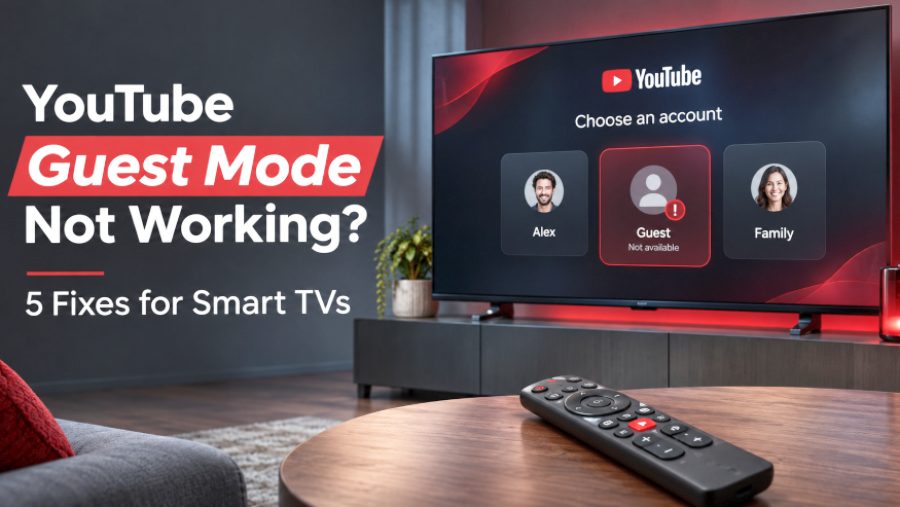
If YouTube Guest Mode is not working on your smart TV, the solution depends on whether the Guest option is missing, YouTube keeps requesting sign-in, or videos refuse to play. Restarting the device can help with playback errors, but it will not resolve every account restriction or missing menu option.
YouTube has not universally removed Guest Mode. Its official TV documentation still describes Watch as guest, although the option can appear differently across TV interfaces. For example, some Roku and Apple TV interfaces replaced the dedicated Guest profile with a signed-out viewing option.
This guide covers five practical fixes for Samsung Smart TVs, Google TV, Roku, and other supported devices. It also examines eight published troubleshooting discussions to explain which reported problems are different, why some repairs fail, and how to verify that Guest Mode actually works again.
TL;DR:
Restart YouTube if videos freeze or you experience repeated playback errors.
Check your internet connection if videos fail to load.
Clear the YouTube app cache only if your TV supports this option.
Check the YouTube account picker and parental settings if Guest Mode is missing or asks for a code.
Update or reinstall YouTube if technical problems persist, but remember that neither guarantees a fix.
Verify the result by signing out and playing an ordinary public video.
YouTube Guest Mode lets someone watch videos on a shared TV without signing into a personal account. Watching as a guest does not affect another signed-in account's recommendations, although YouTube says signed-out viewing can influence recommendations shown on that device.
Guest Mode problems generally fall into several different situations.
A missing Guest option may result from an interface change. In February 2025, 9to5Google reported that certain Roku and Apple TV versions had removed the separate Guest profile while retaining a Use signed out control.
A sign-in or code requirement can involve account protection, household restrictions, or YouTube's own verification requirements. Parent Code and Account Lock are different controls, and neither should automatically be treated as an application malfunction.
Playback problems are another category. YouTube may freeze, display an error, or fail to load videos because of a device, application, or connection issue. In other cases, the problem concerns a particular video's restrictions rather than Guest Mode itself.
Before attempting repairs, identify what happens when you select Guest. Does YouTube return to the account screen, request a code, ask you to confirm you are not a bot, or open successfully before a video fails?
Then try another ordinary public video with no known access restrictions. If that video plays, investigate the original video's access requirements. If every eligible video fails, the broader troubleshooting steps below become more relevant.
These five fixes address different symptoms. You do not need to complete all five in order. If Guest Mode is missing or asks for a Parent Code, start with Fix 4 rather than restarting and clearing data unnecessarily.
Best for: Guest Mode freezing, loading indefinitely, repeatedly displaying playback errors, or failing to play multiple videos.
Restarting the app or device can help with temporary application and playback problems. YouTube recommends rebooting devices as part of its official video-error troubleshooting, although that does not prove that restarting repairs every Guest Mode issue.
Start with these steps:
Close the YouTube application on your TV.
Open YouTube again and select Guest or the signed-out viewing option.
Try playing the same ordinary public video.
If the problem remains, restart the device running YouTube.
Reopen the app and repeat the signed-out playback test.
According to YouTube's official troubleshooting instructions, you can power-cycle the affected device by disconnecting its power cable, waiting at least 30 seconds, and reconnecting it.
Make sure you restart the correct device. If you use Roku, a streaming box, or a game console, turning off only the television display may not restart the device running the YouTube app.
How to verify: After restarting, select Guest and play an ordinary public video without signing into a personal account. If playback resumes, the immediate failure has cleared.
However, if YouTube continues requesting a Parent Code or the same video requires sign-in because of an access restriction, repeated restarts are unlikely to resolve that condition.
Best for: Videos buffering indefinitely, connection errors, or multiple applications failing to load content.
A poor or interrupted connection can prevent YouTube from loading videos. However, an internet problem should not be assumed simply because the Guest button has disappeared.
Start by comparing playback within YouTube. Open another public video and see whether it plays. Then open a different streaming application on the same TV.
If multiple applications fail to load content, investigate the device's connection before changing YouTube's account settings.
Google documents the following connection-check path:
Settings → Network & Internet
Confirm that Wi-Fi is enabled and that your device is connected to the intended network.
If the connection is unstable, follow your router manufacturer's restart procedure, reconnect the television, and test playback again.
Roku documents this process:
Press Home on the remote.
Open Settings → Network → About.
Check the connection information.
Select Check connection to test connectivity.
Roku also recommends comparing playback in another application when a particular streaming service is not working.
If another application works while YouTube does not, that result helps narrow the investigation, but it does not establish whether the cause is YouTube's app or a service problem.
How to verify: Once the connection is stable, reopen YouTube in Guest Mode and try the previously failing public video.
You can also compare the result with another device, but keep the conditions clear. A signed-in phone using mobile data is not a matched comparison with a signed-out TV using household Wi-Fi.
On a school, workplace, or other managed network, an administrator may enforce content restrictions. YouTube documents administrator-controlled Restricted Mode, but the evidence reviewed for this article does not establish a universal network restriction that specifically removes the Guest button.
Best for: Persistent app-loading or responsiveness problems when your device offers a documented cache-clearing option.
Cached application files can sometimes be involved in general app problems, but cache corruption has not been established as a common cause of YouTube Guest Mode failures.
This distinction matters because several troubleshooting guides recommend clearing cache without identifying a successful Guest Mode repair or distinguishing cache from stored app data.
An analysis of eight published discussions conducted for this guide did not establish a successful cache-only Guest Mode repair. One TV user reported clearing cache, clearing data, and reinstalling YouTube without resolving a sign-in failure. Because those actions were combined, the report does not isolate the effect of clearing cache.
The correct procedure also depends on your television platform.
Samsung Australia's official app-cache instructions describe this path for compatible models:
Open Settings → All Settings.
Select Support → Device Care.
Open Manage Storage.
Select YouTube, then View Details.
Choose Clear Cache.
Reopen YouTube and test Guest Mode before making another change.
Samsung's guide uses images from a 2024 TV and explains that menus can vary by model and region. If the options are missing, consult the documentation for your particular Samsung television.
You may also notice a Clear Data option. This is separate from Clear Cache and can reset information stored by the application. Do not select it merely because clearing cache did not work.
Google TV's general troubleshooting instructions document the following path:
Settings → Apps → See all apps → YouTube → Clear data
Notice that Google's documented action is Clear data, not Clear Cache.
Clearing app data is more disruptive and can require you to configure application settings or sign in again. Consider it only when a broader app reset is appropriate.
Do not present Google's data-clearing procedure as equivalent to Samsung's cache-clearing option.
The Roku support guidance reviewed for this article does not provide a general per-app Clear Cache menu.
Roku instead documents connection checks, system restarts, application updates, and removal or reinstallation when an application fails to load.
Avoid using Android-specific cache paths or unofficial remote-button sequences as though they were documented Roku Guest Mode repairs.
How to verify: After an appropriate platform-supported action, reopen YouTube, select Guest, and test the same eligible video. If the failure remains, record the result and continue only with a relevant next step.
Best for: Guest Mode missing, YouTube returning to account selection, unexpected profile behavior, or a four-digit code prompt.
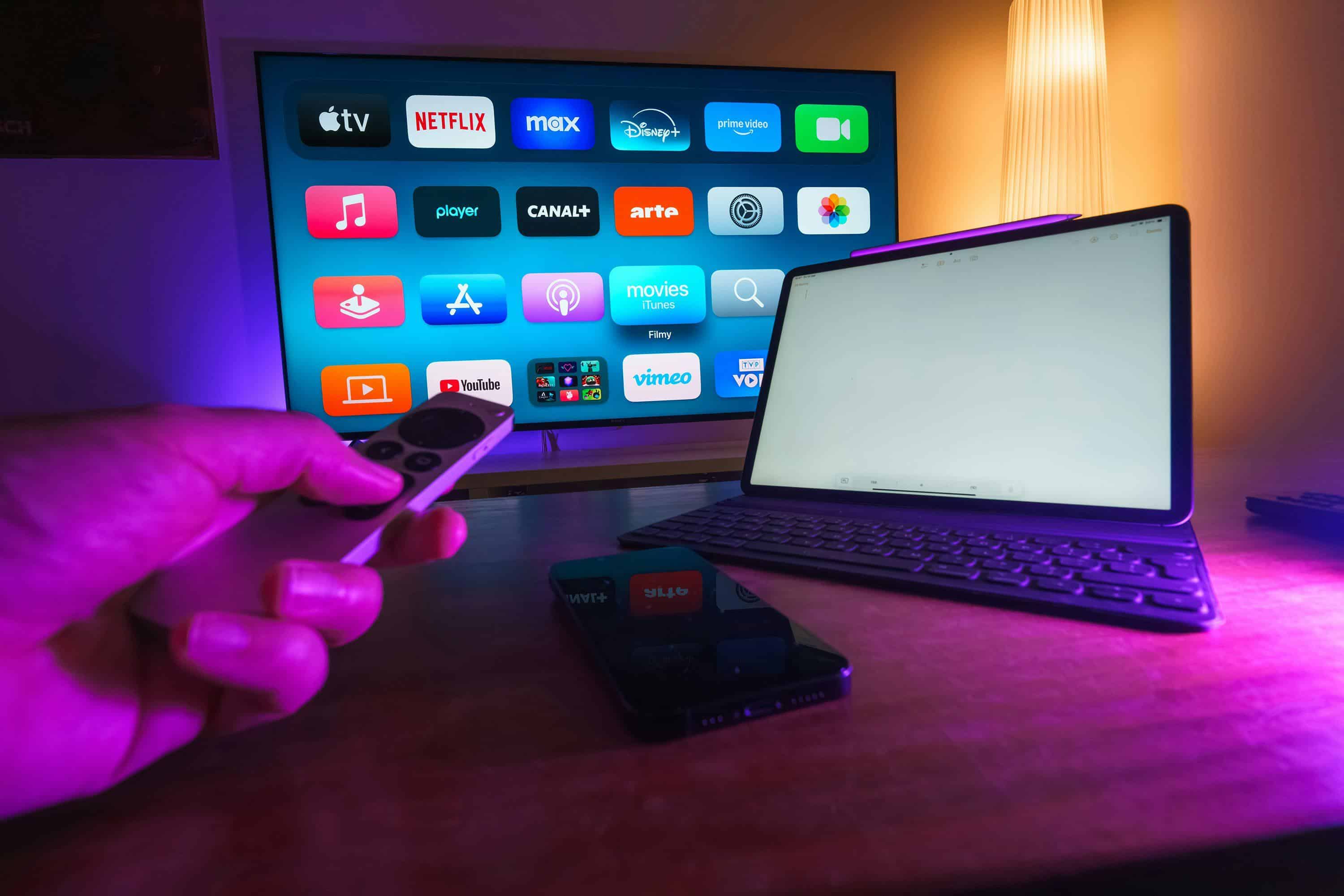
If YouTube opens but you cannot find Guest Mode, inspect the account selector inside the YouTube application before changing the TV's system profile.
YouTube's official smart TV account guide documents two common ways to access Guest Mode.
When YouTube opens to "Who's Watching?"
Look for the Guest option. Selecting it allows signed-out viewing.
When YouTube opens inside a saved account
Open the left-hand navigation.
Select the profile picture near the top.
Open the Accounts tab.
Select Guest, if available.
On an interface where the separate Guest profile has disappeared, look for a signed-out viewing option instead.
Do not confuse YouTube's Guest option with the TV's operating-system guest profile. Also, selecting a YouTube Kids guest profile opens the YouTube Kids experience rather than ordinary YouTube Guest Mode.
YouTube has two controls that users may confuse.
Parent Code can restrict signed-out viewing and access to accounts intended for older household members. The relevant setting is:
YouTube → Settings → Parent code
When enabled, the code must be entered before certain actions, including watching YouTube while signed out.
Account Lock protects access to an individual YouTube account on a shared device. If the code appears when you select a particular saved account, Account Lock may be involved instead.
The distinction depends on exactly which action triggers the prompt. A code appearing before guest viewing and a code protecting an individual account should not automatically receive the same troubleshooting instructions.
If either protection is intentionally enabled, ask the responsible household manager to authorize access or manage the setting. Switching profiles is not a universal way to override parental restrictions.
Some viewers have reported being asked to sign in to confirm that they are not bots while attempting guest playback.
In one set-top-box discussion, the original poster described receiving this prompt after resetting the app. The sequence does not prove that the reset caused the verification requirement.
If this message appears, record its exact wording and whether it affects every attempted video. Do not assume that clearing cache or switching profiles provides a reliable way around YouTube's verification requirement.
How to verify: Return to the account picker, select Guest or Watch as guest where available, and play an eligible public video while signed out. If a code or account-verification requirement remains, identify that restriction rather than reporting the application as fixed.
Best for: Persistent application crashes, loading failures, or general playback errors that remain after less disruptive checks.
YouTube recommends updating its app and the device's software when troubleshooting playback. Updating is a reasonable next step when the installed version may be outdated.
The update procedure depends on the device.
Google's Google TV app-crash guidance describes the following process:
Search for Google Play Store on the TV.
Open the Play Store and select the profile picture or initial.
Select Manage apps & games → Updates.
Install available updates.
You can also check for system updates through Google TV's settings.
Roku documents an application-update option through its home screen:
Press Home on the remote.
Highlight YouTube.
Press the Star button to open the options menu.
Select Check for Updates.
If the application remains unresponsive, Roku's support guidance also describes removing an app and reinstalling it.
On other televisions, use the manufacturer's supported application-management instructions. Some preinstalled apps may have different removal or update controls.
Reinstallation is an available troubleshooting action on some devices, but the published reports examined for this article show conflicting outcomes.
In a September 2026 discussion about TV sign-in problems, one commenter reported that reinstalling YouTube worked. Another reported reinstalling and restarting the television without resolving the problem.
Other people described access returning without identifying a specific repair.
These reports involved different devices, users, and moments during a possible shared service incident. They cannot establish that reinstallation caused recovery or provide a reliable success rate.
A separate Insignia TV report described clearing cache, clearing data, and reinstalling the app without restoring sign-in. Comments in that discussion also described Guest Mode problems, but the original poster's unsuccessful actions were not a controlled guest-playback experiment.
If you reinstall YouTube, be prepared for possible changes to saved app settings or account sessions. Avoid a complete television factory reset as a routine troubleshooting step.
How to verify: Reopen YouTube, enter Guest Mode, and play an ordinary public video without signing in.
A successfully restored personal account, a working QR-code activation, or a video cast from your phone is not sufficient evidence that the television's native Guest Mode has been repaired.
The five fixes above are supported as conditional troubleshooting actions by device and platform documentation. Published user experiences provide a different kind of evidence: they show what people encountered and attempted, but not whether a repair reliably works across devices.
For this guide, an analysis completed on November 1, 2026 examined eight public discussions containing firsthand reports involving smart TVs, streaming boxes, or game consoles.
The discussions were selected from discoverable reports of YouTube guest-access problems. They were not randomly sampled, and the affected app versions, network conditions, and exact device environments could not be independently verified.
Each discussion received one primary symptom classification. Replies were distinguished from original posts so that different people's experiences were not treated as one controlled experiment.
Three selected threads described requests to sign in or prove that the viewer was not a bot.
One involved a Nintendo Switch user who had previously used guest viewing but later encountered an account-selection prompt. Another concerned a set-top-box user who reported verification requests after resetting the application.
These experiences show why the exact message matters. A bot-verification prompt is not interchangeable with a missing Guest tile or a Parent Code requirement.
However, the reports do not establish a common technical cause or a reliable way to remove the prompt.
Three selected threads described problems involving personal-account sign-in alongside guest access.
The September 2026 TV sign-in discussion included reports from multiple device types. Some users described Guest Mode failing as well as normal account activation.
That distinction is useful when diagnosing a problem. If multiple accounts and Guest Mode fail around the same time, an isolated issue with one saved profile becomes a less complete explanation.
It does not prove a service outage on its own, but it is a reason to investigate whether a wider incident has been acknowledged before repeating device resets.
The remaining two selected threads primarily concerned viewers being asked to sign in or create an account when they expected guest viewing.
In one discussion involving a shared television used by Airbnb guests, the original poster described an unexpected sign-in requirement. A separate commenter mentioned a missing guest option, but that comment should not be treated as the original poster's exact symptom.
This illustrates why seemingly similar reports need careful interpretation. A missing control, required sign-in, and failed playback can occur in related conversations without representing the same underlying failure.
The eight discussions break down into three primary categories:
3: Bot-verification prompts.
3: Combined sign-in and Guest Mode failures.
2: Other sign-in requirements.
These are counts of eight deliberately selected discussions, not the proportion of YouTube users experiencing each problem.
The discussion dates recorded in search metadata ranged from December 2025 through September 2026. Some threads included later comments, and two September discussions may have described the same incident.
The analysis also found that reinstalling had mixed reported outcomes, no successful cache-only repair was established in the sample, and some recoveries occurred without a clearly identified fix.
No included discussion provided controlled, reproducible proof that one action reliably restored native signed-out playback across devices.
That result does not demonstrate that the five fixes are ineffective. It explains why each one should be used for an appropriate symptom and followed by a clear playback test.
Research method: The review selected eight distinct public threads based on relevant firsthand device reports, classified one primary symptom per thread, and compared described interventions with reported outcomes. The research record checked that all eight thread identifiers were distinct and that the primary category counts reconciled. No physical TV tests, fix-success percentages, or population-wide estimates were produced.
If Guest Mode continues failing after the applicable checks, stop repeating the same resets without additional evidence.
First, determine whether the issue affects one video, every ordinary public video, or the entire YouTube application. If only one video fails, inspect its content restrictions before assuming that the app is malfunctioning.
YouTube's age-restriction rules state that age-restricted videos cannot be watched while signed out.
For a particular video, YouTubeToolkit's YouTube Age Restricted Viewer can help inspect available age-restriction and related metadata signals. It cannot bypass sign-in, age verification, or YouTube's access controls.
If ordinary public videos fail across multiple accounts or devices, consider whether YouTube is experiencing a broader problem.
For example, YouTube acknowledged a TV and console sign-in incident in September 2026 and subsequently marked it fixed. Some reports associated with that period also described Guest Mode failures. That was a historical incident, not evidence that an outage is active now.
Before contacting support, collect the information that would help distinguish the possibilities:
Your TV or streaming-device brand and model.
The YouTube app version and device software version, if available.
The exact error message or code.
Whether Guest Mode opens before playback fails.
Whether another ordinary public video works while signed out.
Whether signed-in playback behaves differently.
When the issue began and which fixes you already tried.
If YouTube displays a broader video-unavailable error, see our guide to diagnosing the “This Content Isn't Available” YouTube error. It explains how to distinguish content restrictions, identity conditions, device problems, and connection failures.
If the issue persists, consult YouTube or your device manufacturer's support information. A precise error description is more useful than repeatedly reinstalling an app without knowing what failed.
YouTube has not documented a universal removal of guest viewing. Its official TV documentation still describes Watch as guest. Some TV interfaces have changed how the signed-out option appears, so an absent Guest profile does not necessarily mean the feature has disappeared.
The reason depends on the message and the content being accessed. A particular video may require an eligible signed-in account, or YouTube may display a separate verification requirement. Check whether ordinary public videos also fail and whether the request concerns a household code, account verification, or content access.
Yes. Guest viewing is intended for watching YouTube while signed out. However, not every video or feature is available without an account. For example, age-restricted videos require an eligible signed-in viewer, and a household Parent Code can restrict guest access.
Clearing cache is a possible troubleshooting step on supported platforms, not a verified universal fix. The eight-discussion sample reviewed for this guide did not establish a successful cache-only guest repair. Also, Samsung's Clear Cache and Google TV's documented Clear data procedure are different actions.
The difference may be related to content access, a verification requirement, or a problem affecting the guest session. If an ordinary public video works while signed in but repeatedly fails while signed out, record the exact message. That observation narrows the problem but does not identify its technical cause on its own.
A successful Guest Mode repair has one clear outcome: an ordinary eligible YouTube video plays through the TV's native Guest or signed-out viewing option without entering a personal account.
If the option is missing, start with the YouTube account picker. If a code appears, identify the account protection involved. If the application freezes or videos fail broadly, use the relevant restart, connection, cache, and update procedures for your device.
If the same failure remains, use the recorded error and device information to investigate further. The important result is not how many troubleshooting steps you complete, but whether the original signed-out viewing problem has been resolved or correctly identified.
YouTube SEO & Channel Growth Strategist
Alex Carter covers YouTube SEO, channel growth, content optimization, and creator technology at YouTube Toolkit. His articles provide practical tutorials, research-backed insights, and actionable strategies to help creators improve video discoverability, understand YouTube analytics, grow their audiences, and build sustainable channels.
Use our free tools to analyze, optimize, and maximize your YouTube channel's potential